

Astute Beta Server Crashing or Not Working in Your Region? Here’s How to Fix It
You install Astute Beta Server, tap the icon, and one of two things happens. The app closes by itself after a few seconds, or it opens but never connects. It is frustrating, especially when other players seem to be testing new content without any problem.
The good news is that most of these problems have simple causes. This guide explains why the app crashes, why it may not work in your region, and what you can do about each one, in plain steps.
First, Understand What Kind of Problem You Have
Not all problems are the same, so it helps to sort yours into one of three groups before you try any fix:
- The app crashes: it opens, then closes, freezes, or restarts during use.
- The app opens but will not connect: you see a loading screen, a timeout, or a server message.
- The app works for others but not in your country or network: this points to a regional or network issue.
Knowing which group you are in saves a lot of time. Random fixes often make things worse.
Why Astute Beta Server Crashes
A beta app is unfinished by design, so some instability is normal. But most crashes come from your device, not from the app itself. Here are the most common reasons.
1. Not Enough RAM
The app is large, and it needs free memory to run. If your phone has 2 GB of RAM or less, or if many apps are open in the background, Android may close the beta app to protect itself. Close other apps, restart your phone, and try again before opening anything else.
2. Your Phone Is Overheating
Long sessions on a warm phone can cause sudden closing. Many Android phones lower their performance or shut apps down when they get too hot. Take a short break, remove the phone case, and avoid playing while charging.
3. Battery Saver or Data Saver Is On
These modes limit what apps can do in the background. That can break the connection to the beta server and force the app to close. Turn both off while you test.
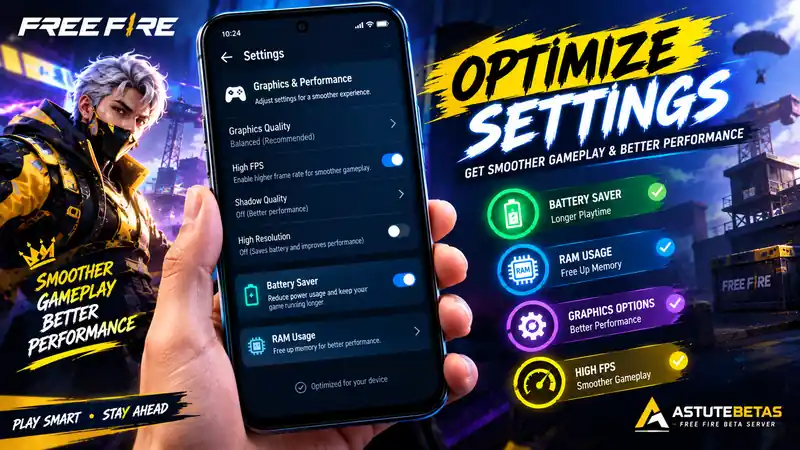
4. Graphics Settings Are Too High
If your device is older or mid-range, high graphics can overload it. Lower the graphics quality and frame rate inside the app settings. Stable and smooth is better than pretty and crashing.
5. A Newer Beta Build Has Replaced Yours
Beta builds change often. When a new one is released, an old build may stop working with the server. If the app worked yesterday and crashes today, check whether a newer version is available on the site and update it.
Why It May Not Work in Your Region
Some players find that the app will not connect at all, even though their phone is fine. In most cases the cause is one of the following.
1. Regional Server Limits
Beta servers are often tested in selected regions first. This can mean the servers are busy, limited, or simply not open to every country at the same time. If that is the case, the app may open but fail to connect, or show a server error. Waiting a few hours or a day and trying again can help, since access sometimes changes as testing continues.
2. Your Internet Provider or Network
Some internet providers or public networks block certain servers. School, office, and public Wi-Fi networks are common examples. Try switching between your home Wi-Fi and mobile data. If it works on one but not the other, the network is the problem, not the app.
3. Wrong Date and Time on Your Phone
This one is easy to miss. If your phone’s date, time, or time zone is wrong, secure connections can fail. Turn on automatic date and time in your phone settings.
4. DNS Problems
Your phone uses DNS to find servers online. If your DNS is slow or blocked, the app cannot find the beta server. You can try a public DNS in your Wi-Fi or Private DNS settings. Only change this if you are comfortable with it, and write down your old setting first so you can go back.
About Using a VPN
Many players try a VPN to get around regional problems. It can sometimes help, but it is not a guaranteed fix, and it comes with real downsides. A slow or free VPN can add lag, drop your connection, and expose your data to companies you know nothing about. If you decide to try one, use a trusted provider and understand that regional limits on a beta server may still apply. Do not log in to accounts you care about while testing.
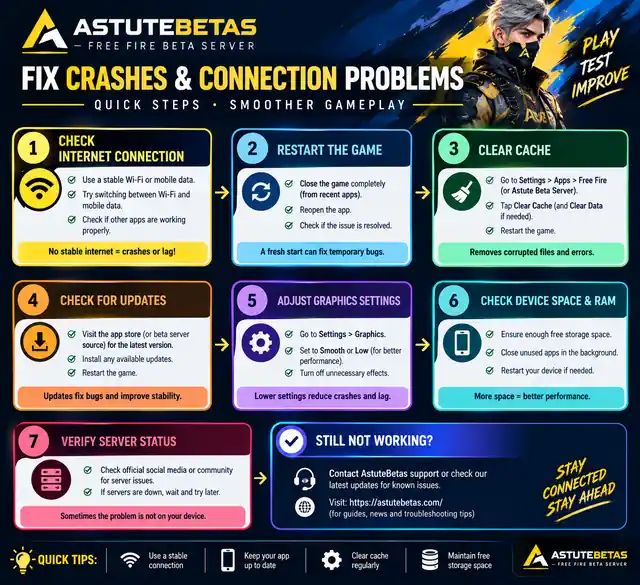
Quick Checklist Before You Give Up
Go through this list in order:
- Restart your phone and close all background apps.
- Check that you have enough free storage and that the phone is not hot.
- Turn off battery saver and data saver.
- Set date and time to automatic.
- Switch between Wi-Fi and mobile data.
- Lower the graphics settings.
- Check the site for a newer version of the app.
- Wait a few hours and try again, in case the server is busy.
If none of these work, note your phone model, Android version, and the exact message you see. This makes it much easier for someone to help you.
When Should You Stop Trying?
Sometimes the problem is not fixable on your side. Older phones may not have the power to run a large beta build at all, and some servers may not accept your region until testing expands. If you have tried the checklist above and still see the same issue, it is better to wait for the next update than to keep reinstalling again and again.
Final Thoughts
Crashes and region problems are common with beta apps, and they rarely mean something is permanently wrong with your phone. Most of the time, the cause is a memory limit, a network setting, or a build that has changed. Work through the steps above one at a time, change only one thing at each step, and you will usually find the reason quickly.